Creator guide

Make channel-ready clips with hailuo for youtube

Using hailuo for youtube works best when you plan a short visual sequence, not an entire finished upload. Start with one scene, then edit, narrate and review it in your usual production workflow.

Review the result before publishing
Hailuo landing-page visual presented below the creator guide

The hard part is making one clip fit a whole video

A striking scene can still fail in an upload if its framing, pacing or subject does not support the script. Decide where the clip belongs before generating it.

Three workflows for common YouTube formats

Match the visual task to the kind of video you publish. A short opener, a narrated explanation and a visual essay need different prompts and different edits.

Explainer creator

Write a sentence of narration first, then describe a shot that illustrates that exact point. Keep the prompt focused on one action so the image does not compete with the voiceover.

Place the resulting clip beneath narration and add any factual labels in the editor, where you can check their spelling and timing.

hailuo tutorial for beginners
Visual essayist

Turn a recurring location or mood into several separate shot briefs. Repeat essential subject details in each brief, then compare the results before selecting a sequence.

Use the strongest shots as transitions while keeping the essay's argument in your script rather than relying on generated imagery to explain it.

hailuo ai photo

Tutorial publisher

Use a generated scene for an abstract introduction, not as a substitute for an accurate screen recording of the steps viewers must follow.

Cut from the opener to verified demonstrations; keep interface instructions, cursor movements and on-screen claims under your direct control.

hailuo online video

Short-form creator

Draft a single visual hook with a clear subject and camera movement. Leave room in the edit for a caption, sound and the final point of the story.

Preview the crop and text placement for YouTube Shorts before posting; a compelling full-frame scene may lose its subject when reframed.

hailuo ai photo to video

Brief, assemble and review the sequence

Treat each generation as source material for a YouTube edit. These steps are an editorial method, not a promise of particular controls or export options.

  1. 1

    Brief one shot

    Name the subject, action, setting and camera movement. If continuity matters, keep a written description of the character, clothing and location to reuse in later briefs.

  2. 2

    Build the edit

    Choose usable clips, arrange them against your script and add narration, captions, music and transitions in an editor. Cut around visual changes rather than assuming every frame will match your plan.

  3. 3

    Watch like a viewer

    Play the assembled video with sound, then check it muted and on a small screen. Look for misleading visuals, awkward crops, unreadable captions and abrupt changes between shots.

Example output: from a scene idea to an edit

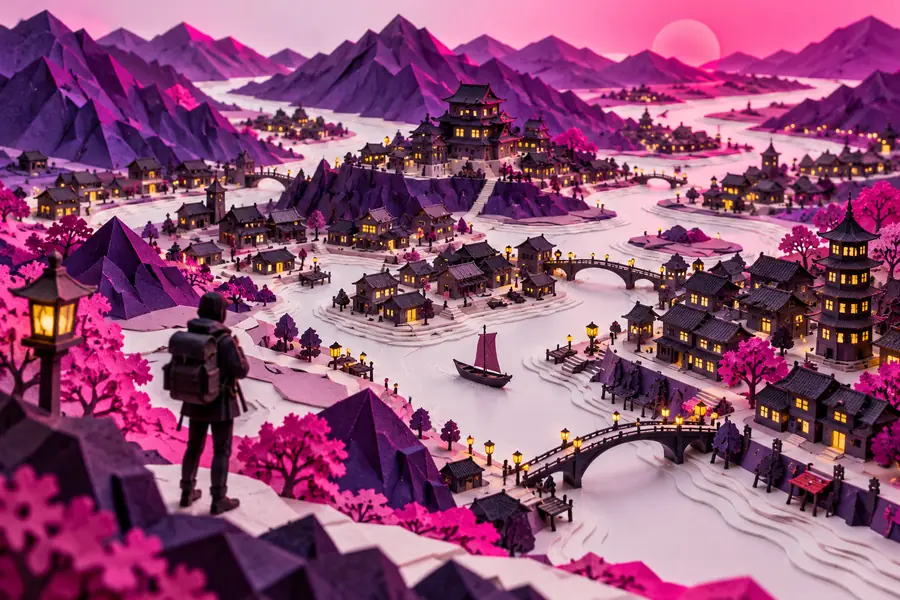
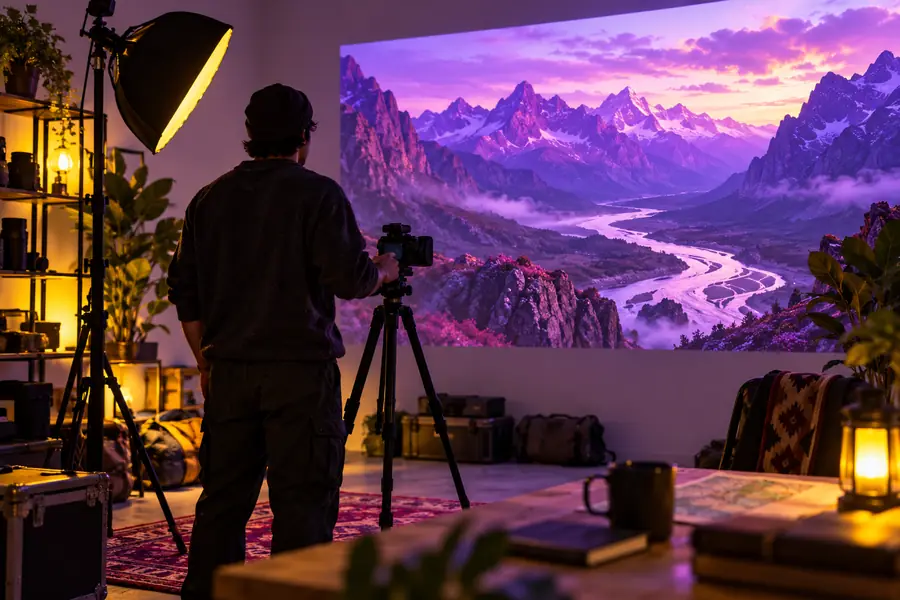
This illustrative pair shows how a visual concept can be planned for a channel sequence; it is not a verified before-and-after generation.

Illustrative paper-city scene used as a visual concept Visual concept
Illustrative channel-video composition showing a planned use for a generated scene Planned edit
Example brief: a paper city at sunrise with a slow push toward a bridge. In the finished YouTube edit, narration supplies the context and editor-added captions carry any names or facts.

Publishing and compliance checks

A usable visual is not automatically ready to publish. Review both the clip and the material you add around it.

Not a fact-checker

A generated depiction cannot establish that an event happened or that a person, place or product looks a certain way.

Workaround

Use verified sources for factual claims and label illustrative scenes when viewers might mistake them for documentary footage.

Not a rights clearance service

Generating a clip does not clear music, logos, recognizable people or other material included in your final YouTube video.

Workaround

Review the terms applicable to your creation and obtain permission for third-party material before publishing.

Not a complete channel edit

This route does not promise finished narration, dependable on-screen text, captions, thumbnails or an upload directly to your channel.

Workaround

Complete those tasks in your editor and check the available product features before planning around them.

Not a continuity guarantee

Separate generated shots may vary in character details, objects, lighting or camera direction.

Workaround

Keep a shot list, compare takes and use cuts or transitional footage to hide mismatches.

Generated clip versus finished YouTube upload

Use this checklist to separate what a visual shot contributes from what the complete video still needs.

Generated visual clip
Finished YouTube upload

Purpose

Generated visual clip

Illustrates a scene or creates a visual transition.

Finished YouTube upload

Communicates a complete idea to viewers.

Structure

Generated visual clip

Follows one focused shot brief.

Finished YouTube upload

Needs an opening, progression and ending.

Narration

Generated visual clip

May need separate spoken context.

Finished YouTube upload

Places narration where it supports the sequence.

Text

Generated visual clip

Do not depend on generated lettering for accurate facts.

Finished YouTube upload

Adds checked titles and captions in the edit.

Sound

Generated visual clip

Do not assume the scene supplies the audio you need.

Finished YouTube upload

Uses reviewed dialogue, effects and appropriately cleared music.

Framing

Generated visual clip

May need cropping or trimming.

Finished YouTube upload

Is checked in the intended viewing format.

Publication

Generated visual clip

Remains source material awaiting review.

Finished YouTube upload

Receives final accuracy, rights and disclosure checks.

Turn a shot brief into source material

Start with the scene your script needs

Bring one specific visual idea to Hailuo, then evaluate the result in the context of your YouTube edit. Keep control of the script, factual claims and final publication decisions.

Create a clip
  • Describe one scene rather than an entire upload
  • Edit around narration and viewer context
  • Review rights and accuracy before publishing

YouTube creator FAQ

You can plan generated visuals as source material for a YouTube video, but check the terms that apply to your use and to the specific output before publishing. Your finished upload also needs its own review for accuracy, third-party rights and any applicable YouTube disclosure requirements.

Start with a self-contained shot, such as an atmospheric opener, an abstract explanation or a transition between narrated points. A focused brief is easier to evaluate and fit into an edit than a request for a complete video.

Do not plan on that without checking the features available through the product you use. For reliable wording and timing, prepare your narration and add checked captions during editing.

Review current YouTube policies, including rules about disclosure of realistic altered or synthetic content, for the video you intend to publish. Make it clear when an illustrative scene could otherwise be mistaken for real footage, and verify any factual claims separately.

Start creating
Start creating